Our Social Links

Recommended

Showing posts with label Tutorial. Show all posts

Friday, November 3, 2017

Eggster Game [FIX]

Do you know about eggster game?
Every Android smartphone has eggster game which is different as per Android version. 


But most of the people don't know about it. Because you can't access this game easily. There is a hidden feature to access this game on Android devices. :D

How to launch eggster game?

>you just need to go to "Settings-About Phone-Android Version".
>Now tap on "Android version" 3-4 times as fast as you can.
>Now you will see the icon of running Android.
>Just tap on Android icon 5-6 times quickly and swipe clock wise on that icon.
>Now you will see Android eggster game on Android.

    But while checking with EMUI, I couldn't find this hidden game. So I started searching to fix this error of EMUI. Most of the time, I got results related to root. -_-
   But finally I could get the solution for eggster game without root for EMUI. So check out the apps that I have shared in this article and try to launch the game as mentioned above.

For Marshmallow Users: 
                                                     Because of different eggster game in different Android versions, you have to use different apps to enjoy eggster game with EMUI. We're going to fix the issue without root so that's another reason that we have to use different apps for different Android EMUI versions. 
     An app to fix marshmallow eggster has feature to launch it from about phone screen as well as we can launch the app directly from the apps. If you are using any third party launcher then you will find the app shortcut in the apps drawer section.

So, get the app in your EMUI device and fix the eggster game issue...

Link1                                              Link2
Problem with downloading or getting extraction error: Click Here


For Lollipop Users:
                                        As I mentioned that you have to use different apps as per Android version so you need to get the suitable app for the lollipop EMUI version to fix the issue.
    You also get an option to launch this eggster game just like marshmallow users. I mean, you can either launch it via about phone screen using the trick or directly from the launcher or app drawer section.

Now, lollipop users can get the suitable app using this link...

Link 1                                             Link 2
Problem with downloading or getting extraction error: Click Here


For Kitkat Users:
                                    I feel sorry for the kitkat users because I couldn't find suitable eggster game fix for EMUI Kitkat version yet. -_-
    I request kitkat users to use any of the above app to enjoy eggster game of lollipop/marshmallow version. And trust me, the original eggster game of kitkat version isn't good as lollipop/marshmallow eggster game. So better enjoy one of these ones. :)


       Eggster games are somehow popular in stock android devices because these are not so easy to play or create more and more score. I have seen users fighting to show their highest score for eggster game in stock android devices and trust me that the score was not so high taking that as highest. xD
So! I tried to find the game and really it's not easy. :3
        So, play the game now and share your high scores as per Android version. Let's check who has a scored highest. :D

A short video about how to launch:


      If you have any doubt then you can drop in comment section and I'll try to solve your queries as soon as possible.
Thanks :)

Stay tuned... :)
Read More
   

How to get full screen Caller I'd ?

I have seen so many people asking about full screen call I'd so I have decided to create proper guide for it. Read it properly. :D


First of all, full screen Caller I'd feature is only available for the marshmallow users and that too for incoming calls only. Just read step by step about how to set it up:

*You must use Google account to save the contacts for which you want to get full screen Caller I'd view. Google synchronize the contacts in the cloud so you will never loose your contacts and those can be accessed with any android device.

*If the same contact is saved in SIM1, SIM2 or in phone memory then you have to delete that contact details. Just keep the contact in Google account.

*Now, the important thing: Don't select closure view or look for the profile photo while setting up as contact pic. Better use higher resolution pic with the distance view. Just check out it...

  you should have a pic like correct way:


Here you can clearly see that object (person) isn't too close. There should be enough background area so it will be easy when you crop the pic to set as profile contact pic.

*After selecting the pic with proper background and higher resolution, you can just select as contact pic. But the important part comes here again:

While cropping the pic as per circle area, crop as much as possible the zoom in feature.


 I mean, try to get maximum possible area from the pic in that circle with zoom in or pinch in.

*Now Just save the contact in google account and you will receive full screen Caller I'd. 


#Important Points in Short:
  • Contact should be only in Google account, no copy should be in sim or phone memory.
  • The main pic that is selected for contact pic shouldn't be closer view. Object (person) should be far away with proper background around him/her.
  • You need to zoom in as much as possible while cropping the pic and try to get maximum possible area from the main pic.


   So, if you follow this guide properly then you will surely receive a full screen Caller I'd.
Thanks :)

Share Your Feedbacks now...
Read More
   

Font Changing Guide (No root)

Hey,
Bored with the same font style?


Let's try some new font styles now...Check out the tutorial (For EMUI users) below:

For Kitkat (EMUI 3.0):

It's so easy to change font style in kitkat version:
  • You just need to install "ifont" app.
  • Open the app and download the font of your choice.
  • After download, just tap on "apply" button. It will create a new theme with the selected font by you.
  • Now open themes app.
  • Go to "mine" section and find the font 
  • Apply the font and done.

     Get the ifont donated version without ads & no limit :


:Download Here:
(Size : 6 Mb approx/ zip file)


For Lollipop (EMUI 3.1):

It's bit different in lollipop version and I found that ifont no longer supported with lollipop. So just try it:

  • Install "hifont" app.
  • Press menu button and go to hifont menu options
  • You will find the option "Font Changing Mode)
  • Select this option and choose "Huawei Mode" as font changing mode.
  • Now go back and download the font.

  • After download, tap on "use" button and it will create a theme.
  • Now open theme app and select "Customize" option from the bottom. 
  • Go to "Font" and find the downloaded font name 
  • Select the downloaded font and just apply

   
Get the hifont app here: Download


For Marshmallow (EMUI 4.0/4.1):

For Marshmallow, no ifont or hifont supported now and users are confused about changing font style. So just try it:

  • First of all, get this app : Click Here
  • Now open this app and select "browse"
  • Select any theme in which you want to use font style
  • Tap on "start" button and select "Fonts" tab.
  • Select "choose a custom ttf font"
  • Select a font and tap on next

  • Now just edit the description & create the theme
  • Apply the theme from theme app.
*You can get fonts in ttf format using Google search or from downloading via ifont. After downloading via ifont, just go to sd/ifont/cache folder and get the font in ttf format.

*This method also works for kitkat and lollipop.


General Method / Basic guide:

     Except these methods, there is one more General guide that works with kitkat/lollipop/marshmallow all without any problem. You have to edit the theme and put your fonts in it manually: Click Here
     It includes all the steps in brief with the screenshots. In this guide, you also learn how to extract and compress Huawei theme packages. :D

Still doubts then comment below...


Check out some sample font styles created using above trick:

So! If you are unable to do that or you are lazy like me then you can get some font styles from here: Click Here

Thanks :)

Share your opinion please...
Read More
   

Tuesday, August 9, 2016

Secret Activities: EMUI

This application will help you to check out some of the hidden features in the EMUI software. ;)


It finds out the hidden activities or you can say all the activities for any application so it shows up some of the secret options which can't be seen directly from the settings. 

How to Use?
*You just need to install this app like other application.
*Launch the application
*Select all activities option from top drop down menu
*Select any app and it will show you all the available activities of that particular application.
*Check out the activities hidden under settings application.

*Because these options are hidden in the software so it's not expected to work all those features in our device. 
 So, get the application and find the secret options of your version.

:Download Here(Size: 254KB):

Link 1                                                 Link 2
Problem with downloading or getting extraction error: Click Here

Instructions:
>Tap on "link1" or "link2"
>Tap on "Skip this Ad"
>Tap on "Download" 
>Extract after download
>Just install the application via apk file.

We expect sharing the articles from your side... xD
Thanks :)
sounds like interesting!!!
Read More
   

Tuesday, July 26, 2016

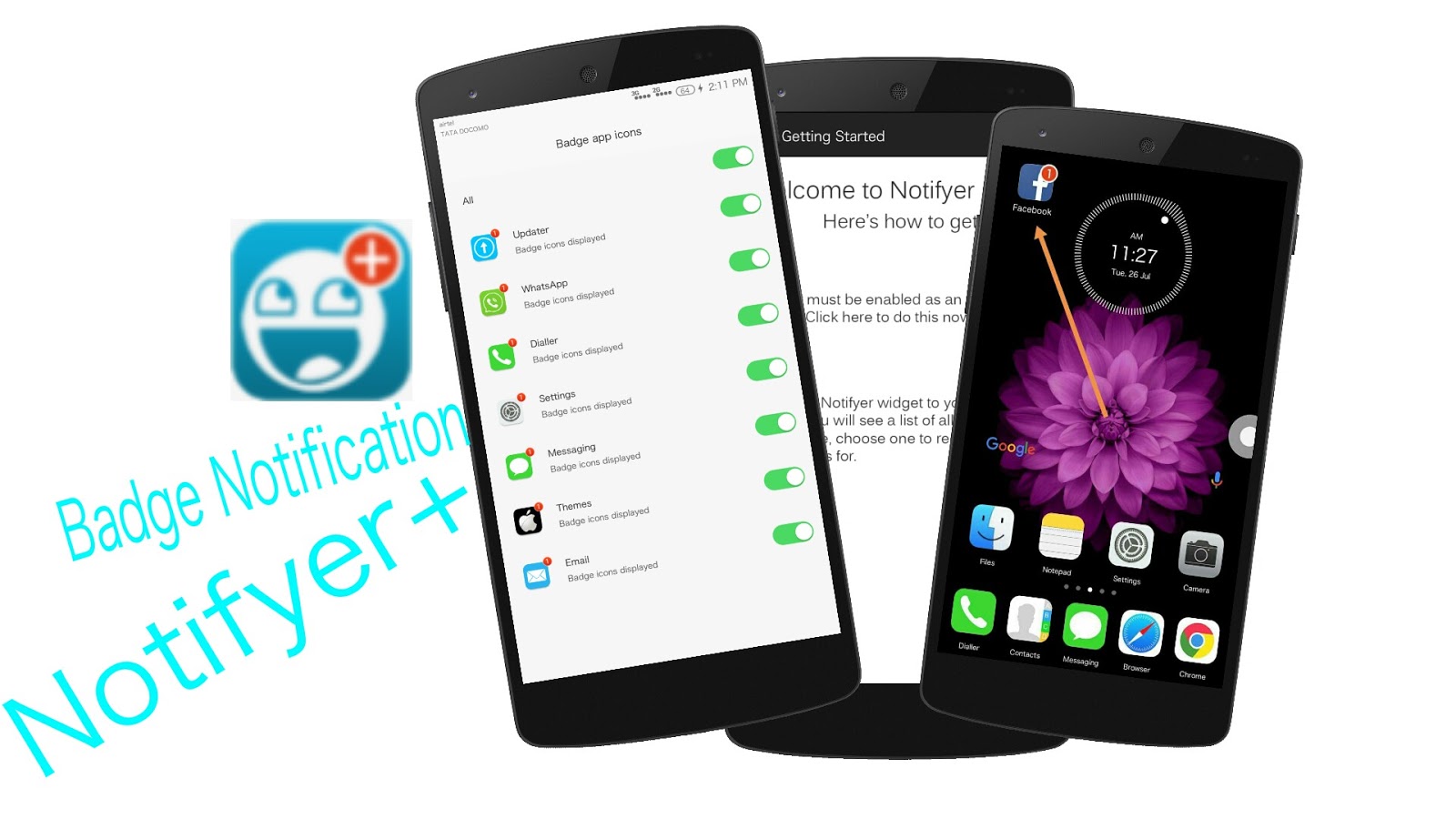
Badge Notification : Notifyer+

Hello friends,
Today I'm going to show you how to set badge notification for any app with the default launcher...Isn't cool? :D


What is badge notification? 
It just shows the unread notification count with the app icon. So you can easily understand that how many new notifications for particular app are arrived.

Current EMUI stock launcher doesn't support this feature for all the apps. Only some apps are available to use badge notification.

So check out the guide below with screenshot to enable this cool feature for any of the installed app:
How to set it?
  • First of all, get the app from the bottom of this article using download links. Install the app like other apps.
  • After installation, just open the app and you will get this screen:
Now you just need to follow these two steps. :)
  • Tap on step 1 option and it will redirect you to the accessibility settings. Now find the "notifyer+" option and turn it on:
Now you have done step 1. :D

  • Now come back to the any screen of stock launcher and just "pinch in" or "zoom in" on any of the launcher page:

  • Select "widgets" option and find the "notifyer+" widget:

  • Select the notifyer+ widget and it will ask you to select the app for which you want to enable badge notification:


Just follow this way for any app & receive badge notification for that app. ;)

Because it creates it's own icon for the selected app so you get two icons on home pages for single installed app.  So, you can put all the main app icons of the selected apps in any folder on any page of the launcher or you can put those icons in hidden app drawer section (available in EMUI 4 & above).

:Download Here(Size : 0.38 Mb/391 kb) :

Link 1                                                      Link 2

Problem with downloading, click here

Instructions:
>Tap on "link1" or "link2"
>Tap on "Skip this Ad"
>Tap on "Download" 
>Extract after download
>Install the app via apk package
Thanks :)
Drop your doubts in comment section...
Read More
   

Monday, July 25, 2016

Magazine Lock Screen/ Wallpaper Update 1

Hi guys,
EMUI has magazine lockscreen support which is one of the cool feature of EMUI.

What's Magazine Lock screen?
EMUI supports it's own customised lock screen which is quite different from other lock screens. The quality of magazine lock screen is : "Every time you get a new wallpaper when you are going to unlock the the phone." It also consists some shortcuts that can be accessed by swiping up from bottom. Magazine Lock screen is such a great EMUI feature.

But, Do you know that you can use your own selected wallpapers for magazine lock screen!!!
Yes, you can put your selected wallpapers up to 500. Check out the step by step guide:


  • First of all, apply default theme from themes app or go to customize option and select magazine lock screen from there then apply the theme with magazine lock screen.
Here, spectrum is the default theme so I have applied this default theme that support magazine lock.
  • Now lock your screen and just press the power button once. You will see a magazine lock screen
Now just swipe up  from the bottom of your screen in this way:
And then you will get this screen:
You can see some shortcuts here....You just need to tap on "Covers" icon. 
  • As soon as you select Covers option, you get this screen:
Select add option from bottom and the wallpapers from gallery up to 500. 
  • You get this type of screen when you add the wallpapers for magazine lock screen:
Now you have done. Just lock the phone and check again. You will see the selected wallpapers randomly:
It's the beauty of EMUI. 
You can also control the playback or start/stop playback of these wallpapers directly via shortcuts which is available in lock screen. Just swipe up from bottom and do whatever you want. :D

*Applicable for EMUI 3.1 & above*

So! Why are you wasting time now? :3
Just try to check this cool feature yourself. 
Get the magazine wallpaper (Update 1)(Size : 2.89 mb) here:


Link 1                                                 Link 2 

Issue with downloading, click here

Instructions:
>Tap on "link1" or "link2"
>Tap on "Skip this Ad"
>Tap on "Download" 
>Extract after download
>Get the wallpapers and follow above guide
Thanks :)
Isn't cool ! Share your opinions...
Read More
   

Saturday, July 23, 2016

How to Download?

Hey, 
Are you facing issues with downloading files from our sources? -_-
If yes then just read this easy guide  properly. :)

  • First of all, you should read the article properly and find the "Download" button (mostly in red colour).
       Just tap on the Download button. 
  • After that, you will see our another source page including some adds. Just ignore those adds and check on top. You will see something like "please wait" command and then there will be countdown from 5 to 0. Then there will be an option to "skip add".

     You just need to tap on it "Skip this Add".
  • Now download may start automatically (just wait for 5-6 sec if you see oops or missing file command) or sometimes you have to tap on another "Download" button. E.g. : 
    Be quick here to tap on download button otherwise it goes further automatically in any other partner site. It's not compulsory that you get this source always. I might be use drive or other cloud services too in this step. So you should be friendly about some cloud services. Because free services have limit to share files. :)

>Some Important Points:
  •  Prefer UC browser (not mini)
  •  Keep Adblock off 
  •  Avoid Pause/Resume
  •  Always match up the size of your  downloaded file with mentioned size.
  •  If size is different then download again.
How to turn off Adblock:
  • Open UC browser and tap on "menu button" from the bottom action bar. Check the screenshot below:
  • Swipe the menu shortcuts screen to the left side and go to the 2nd tab of menu shortcuts just as the screenshot below:
  • Now you will see the option "tools" in 2nd tab of menu shortcuts. Just tap on it:
  • Now select "Adblock" and turn off both the options as screenshots below:


       In this way you can easily download the files using UC browser. I'll recommend you to use UC browser for downloading files. It's best browser as per my choice for downloading files.
Thanks :)
Still doubt! Comment down...
Read More
   

Services

Labels

3.0/3.1 (2) 4.0 (2) App (30) Discussion (1) Downloads (2) EMUI Apps (5) Exclusive (11) Fonts (2) Live Wallpapers (10) Magazine Pics (7) Off-topic (2) Review (1) Themes (3) Tutorial (7)

More Services

© 2014 EMUI. Designed by Bloggertheme9 | Distributed By Gooyaabi Templates
Powered by Blogger.